Collections & Fields
How content schemas work in GitCMS — collections, field types, validation, and frontmatter schema configuration.
Collections are the backbone of GitCMS. Each collection represents a type of content — blog posts, documentation pages, team members, product changelogs — with a defined set of fields that make up the frontmatter schema.
What is a collection?
A collection maps to a directory in your repository. Every Markdown or MDX file in that directory becomes an entry in the collection. The frontmatter fields in each file are defined by the collection's frontmatter schema, and GitCMS renders a structured form for editing them.
src/content/blog/          ← collection "blog"
  ├── hello-world.mdx      ← entry
  ├── second-post.mdx      ← entry
  └── draft-ideas.mdx      ← entry
Managing collections
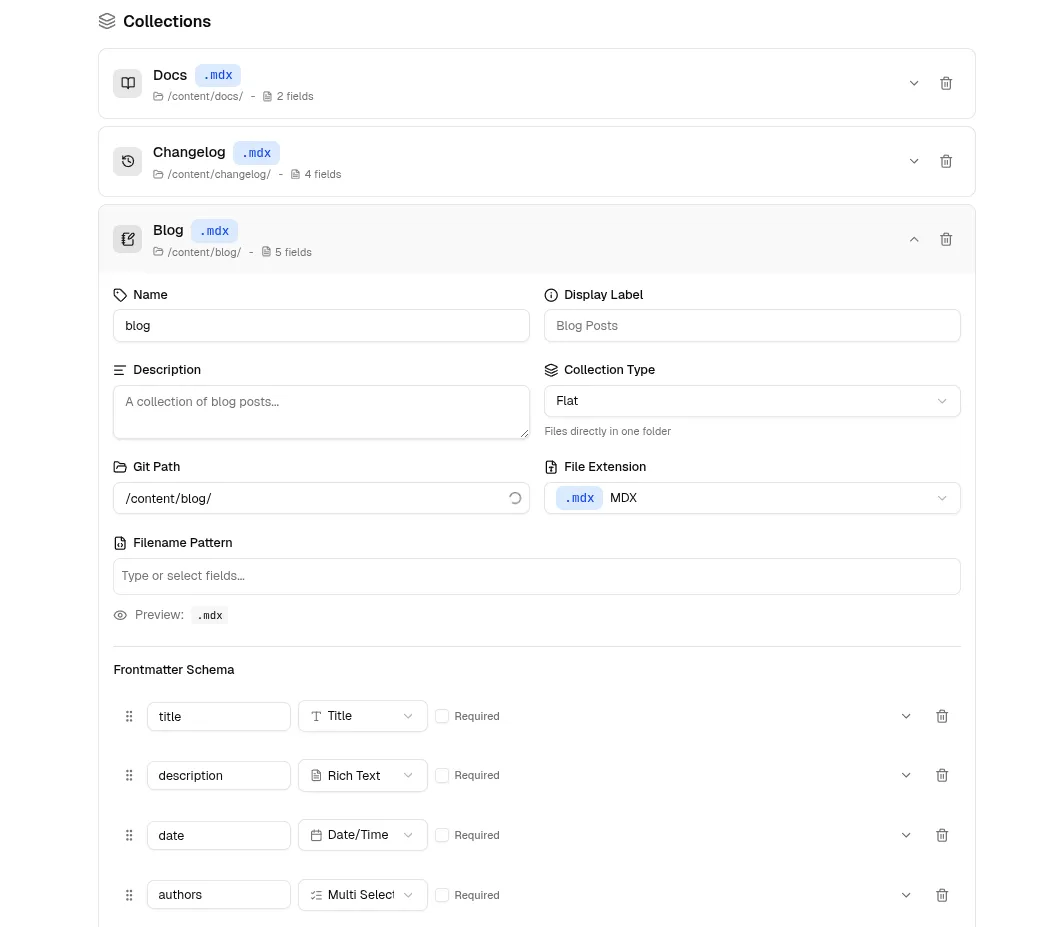
Collections are configured through the Settings page in the GitCMS web app. You can add, edit, and remove collections and their fields entirely through the UI. The configuration is saved into your repository's .gitcms/ folder — you don't need to edit it manually.
Collection settings
| Setting | Description |
|---|---|
| Name | A unique slug for the collection (used in URLs and the sidebar) |
| Label | Display name in the sidebar. Defaults to a human-readable version of the name |
| Description | Optional help text describing the collection's purpose |
| Content path | The directory path for collection files (resolved in the site's config context) |
| File extension | .md or .mdx |
| Filename pattern | Template for new file names, built from field references and text tokens |
Collection i18n paths
When site i18n is enabled, each collection can use locale-aware paths.
- Strategy is path-based (
path). - Default behavior uses locale folders (
/blog/fr/...). - You can set per-locale overrides when your framework uses custom folders.
Example override pattern:
i18n:
  enabled: true
  locales: [en, fr]
  default_locale: en
  prefix_default_locale: false
collections:
  - name: blog
    git_path: /content/blog/
    i18n:
      enabled: true
      strategy: path
      locale_paths:
        fr: /content/fr/blog/
Filename patterns
The filename pattern controls how new files are named when created through the CMS. You build patterns using the visual pattern builder in Settings, combining text and field references.
Examples:
{title}— derives filename from the title field (e.g.hello-world.mdx){date.iso}-{slug}— date prefix with slug (e.g.2025-01-15-hello-world.md), useful for Jekyll
Common patterns by use case:
- Docs and marketing pages:
{title} - Blog posts:
{date.iso}-{title}or{date.iso}-{slug} - Changelog entries:
{date.iso}-{title} - Frameworks with stricter conventions: match the filename pattern your site already expects
Field types
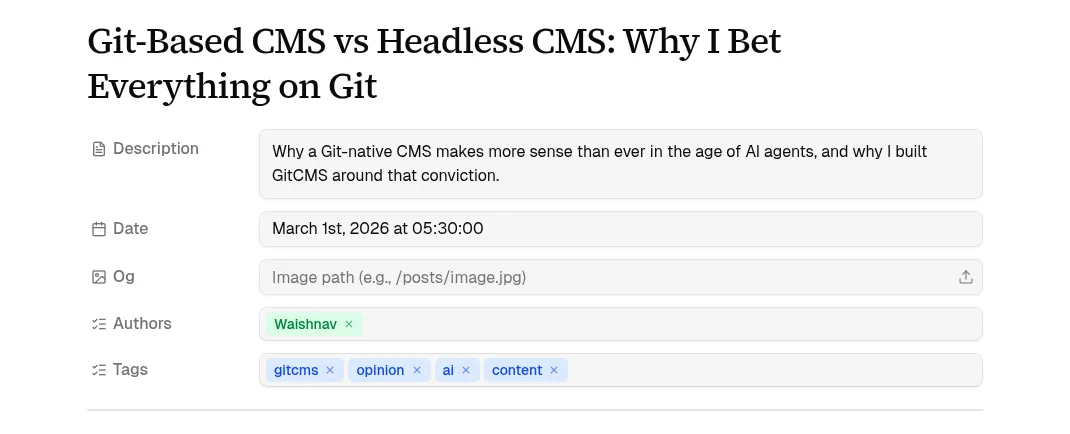
Fields define the frontmatter schema for a collection. Each field has a name, type, and optional validation/display options. GitCMS supports the following field types:
Title
A single-line text input optimized for entry titles. Typically used as the primary display field.
| Option | Description |
|---|---|
maxLength | Maximum character count |
Text
A single-line text input for short text — slugs, author names, short descriptions.
| Option | Description |
|---|---|
maxLength | Maximum character count |
pattern | Regex pattern for validation |
Rich Text
A mini rich text editor for formatted text — descriptions, excerpts, bios. Uses a subset of the main editor's formatting capabilities.
| Option | Description |
|---|---|
minLength | Minimum character count |
maxLength | Maximum character count |
Boolean
A toggle switch for true/false values — draft status, featured flag.
| Option | Description |
|---|---|
default | Default value for new entries |
Number
A numeric input with increment/decrement controls — sort order, priority, version numbers.
| Option | Description |
|---|---|
integerOnly | Restrict to whole numbers |
min | Minimum allowed value |
max | Maximum allowed value |
default | Default value for new entries |
Datetime
A date picker that outputs an ISO date string. Can optionally include time.
| Option | Description |
|---|---|
withTime | Enable time selection alongside date (date-only by default) |
timezoneMode | local (default) or utc |
Select
A dropdown menu for choosing a single value from predefined options — category, status.
| Option | Description |
|---|---|
options | List of allowed values |
allowCustom | Whether values outside the options list are accepted |
color | Notion-like tag color for visual distinction |
In frontmatter, the value is stored as a plain string.
Multiselect
A tag-style input for choosing multiple values — tags, categories, labels.
| Option | Description |
|---|---|
options | List of suggested values |
allowCustom | Whether values outside the options list are accepted |
color | Notion-like tag color for visual distinction |
In frontmatter, values are stored as an array of strings:
tags:
  - javascript
  - tutorial
  - react
URL
A text input with URL validation. Use for external links, social profiles, canonical URLs.
Slug
A read-only or auto-generated slug field derived from other fields.
| Option | Description |
|---|---|
pattern | Pattern referencing other fields (e.g. #{title}-#{date}) |
autoGenerate | Whether the slug is auto-generated from the pattern |
By default, the slug can stay in sync with the generated value as you update the fields that feed it. If you manually edit the slug, GitCMS keeps that custom value instead of forcing it to regenerate on every change.
Image
An image picker that integrates with the media library. Users can upload a new image or select an existing one.
The stored value is the file path relative to the repository root.
Common field options
Every field type accepts these shared options:
| Option | Description |
|---|---|
| Name | The frontmatter key (required) |
| Type | The field type (required) |
| Label | Display label in the editor — auto-derived from the name if not set (e.g. publishDate becomes "Publish Date") |
| Description | Help text shown below the input |
| Required | Whether the field must have a value |
Schema inference
If you don't define a frontmatter schema for a collection, GitCMS automatically infers field types from your existing content. It analyzes the frontmatter in your Markdown files and detects:
- Common field names like
title,date,description,image,tagsare mapped to appropriate types. - Values that look like dates become datetime fields.
- Values that look like URLs become url fields.
- Arrays of strings become multiselect fields.
- Boolean values become boolean fields.
This means you can start using GitCMS immediately without defining any schema — it just works with your existing content. You can then refine the schema through Settings for better labels, validation, and field-specific options.
In practice, this is useful when:
- you are bringing an existing content site into GitCMS
- your frontmatter is already consistent enough to recognize common patterns
- you want a fast first pass before fine-tuning field labels and validation
Multiple collections
Most sites have more than one type of content. Add as many collections as you need through the Settings UI. Each collection appears as a separate entry in the sidebar with its own listing page.
Common patterns:
- Blog posts —
src/content/blogwith title, date, tags, draft status - Documentation —
content/docswith title, order, section - Changelog —
content/changelogwith title, version, date - Team members —
content/authorswith name, bio, avatar, social links
Tips
- Keep field names consistent with your framework. If your Astro config expects
pubDate, name the fieldpubDatein your frontmatter schema — notdate. - Use required sparingly. Only mark fields as required if your build will break without them. Optional fields with sensible defaults reduce friction for content creators.
- Use descriptions liberally. Brief help text prevents confusion, especially for non-technical team members.
- Start simple. You can always add more fields later. GitCMS infers schema from existing content, so you only need to define fields when you want specific types or validation.